



Description
Download CyberLink MagicSports – Free Sports Highlight Editor for Windows & Mac
Relive the most thrilling moments of your favorite baseball and soccer games with CyberLink MagicSports – the ultimate tool for sports fans who want to create personalized highlight reels. Designed for those who crave control over their viewing experience, this powerful software turns your PC into a personal sports broadcast studio. Whether you're editing a last-minute goal or a game-winning home run, MagicSports lets you craft custom sports packages with ease. With intuitive editing tools, a virtual remote, and seamless integration with PowerCinema 4 and Windows Media Center, it's perfect for die-hard fans who want to relive the action their way. Though it has some limitations—like DRM incompatibility and platform-specific requirements—its unique features make it a standout choice for dedicated sports enthusiasts. Download CyberLink MagicSports today and take the director’s chair in your own sports universe.
Key Features of CyberLink MagicSports
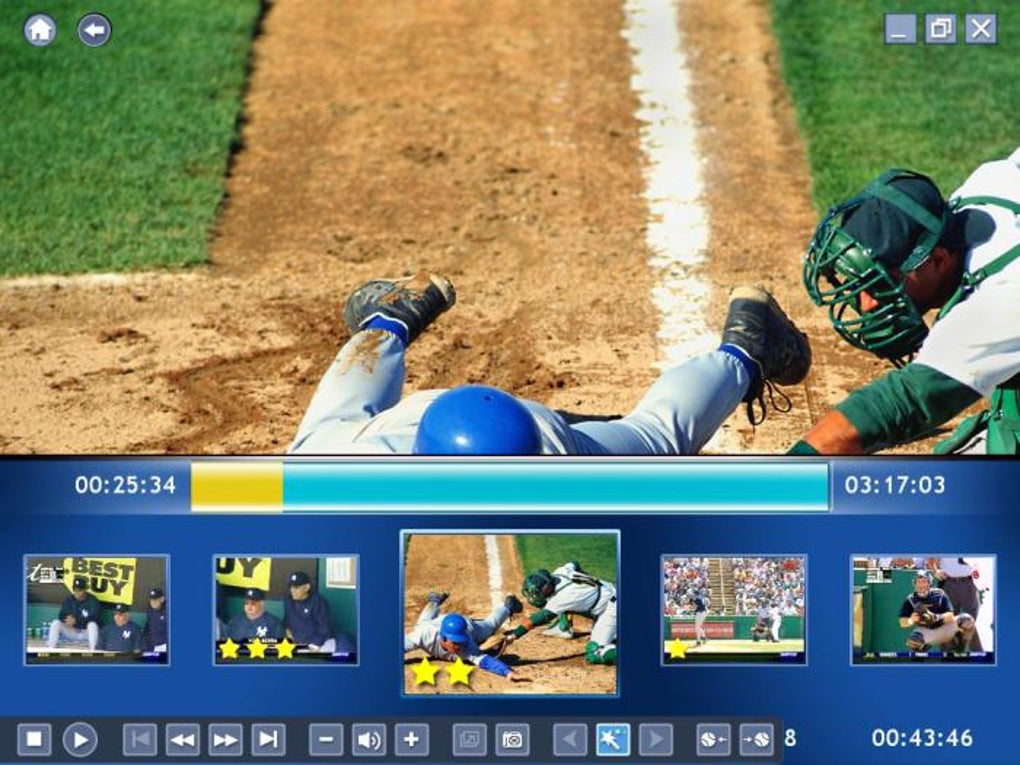
CyberLink MagicSports isn’t just another media player—it’s a full-featured sports editing suite designed to give fans unprecedented control over recorded sports content. One of its standout features is the ability to **create custom highlight reels** from full-length games. Whether it’s a dramatic last-minute goal in soccer or a walk-off home run in baseball, the software allows you to pinpoint key moments, trim them, and assemble them into a polished, shareable package. This functionality is ideal for fans who want to relive the best plays without watching entire games. Another powerful feature is the **virtual remote control interface**, which mimics the experience of using a traditional TV remote. This intuitive design makes navigating through recorded games seamless, allowing you to pause, rewind, fast-forward, and jump to specific scenes with ease. It’s especially useful during live sports viewing when you want to quickly review a controversial call or a stunning play. MagicSports also supports **simultaneous sports viewing**, enabling you to watch multiple games at once—perfect for fans juggling multiple leagues or tournaments. The software integrates with CyberLink PowerCinema 4 and Windows Media Center, ensuring smooth playback and reliable recording. Additionally, the built-in editor offers basic but effective tools like fade-ins, transitions, and text overlays, allowing you to add a professional touch to your highlight packages. For those who enjoy sharing their content, MagicSports supports exporting to common formats like MP4 and AVI, making it easy to upload to social media or share with friends. While it lacks advanced video editing features found in professional tools, its simplicity and sports-specific design make it a standout choice for casual editors and passionate fans alike.Installation & Usage Guide for CyberLink MagicSports
Getting started with CyberLink MagicSports is straightforward—provided you meet the system requirements and have the compatible software installed. First, ensure that your PC runs either Windows 10 or Windows 11 and has CyberLink PowerCinema 4 or Windows Media Center installed. These are non-negotiable prerequisites, as MagicSports is designed as an extension of these platforms, not a standalone application. To install, visit the official CyberLink website and download the latest version of MagicSports. The installer is lightweight and typically takes less than 5 minutes to complete. During setup, you’ll be prompted to choose installation options, including whether to set MagicSports as the default media handler for sports content. Once installed, launch the software and connect it to your recorded sports library. Using MagicSports is intuitive. From the main interface, you can browse your recorded games and select specific scenes for editing. Use the timeline to mark key moments—like goals, fouls, or home runs—then drag and drop them into a new highlight project. The software automatically syncs with your recording schedule, so you can quickly find the exact moment you want to feature. To edit, simply select a clip, apply transitions, add captions (e.g., “Game-Winning Goal – 93rd Minute”), and adjust audio levels. When you’re satisfied, export your highlight reel in high-quality MP4 format. The entire process is designed to be fast and user-friendly, even for those with no prior editing experience. For best results, ensure your hard drive has sufficient space—especially if you’re storing multiple full-length games. Also, keep the software updated to access the latest bug fixes and compatibility improvements.Compatibility & System Requirements
CyberLink MagicSports is designed with a specific audience in mind: Windows users who already use CyberLink PowerCinema 4 or Windows Media Center. As such, it’s **only compatible with Windows 10 and Windows 11**. It does not support macOS, Linux, Android, or iOS—so Mac users or mobile fans will need to look elsewhere. The software requires a minimum of 4GB RAM and a dual-core processor to run smoothly. A dedicated graphics card is recommended for optimal playback performance, especially when editing high-definition sports footage. Additionally, you’ll need at least 1GB of free disk space for installation, though more is advised if you plan to store multiple games. One major limitation to note is that MagicSports **does not support DRM-protected content**. This means you cannot edit or extract highlights from streaming services like ESPN+, Hulu, or Netflix, even if you’ve recorded them through compatible platforms. The software only works with locally recorded content from PowerCinema or Windows Media Center. Despite these constraints, its tight integration with existing media centers makes it a powerful tool for users already invested in the CyberLink ecosystem. If you’re using PowerCinema 4 for recording live sports, MagicSports enhances that experience by adding a layer of personalization and control. For those who don’t use PowerCinema or Windows Media Center, the software may not be worth the download. However, if you’re already using one of these platforms and want to elevate your sports viewing, MagicSports is a valuable addition.Pros & Cons of CyberLink MagicSports
- Pros:
- Powerful highlight reel creation with intuitive editing tools
- Seamless integration with PowerCinema 4 and Windows Media Center
- Virtual remote control enhances navigation and viewing experience
- Supports simultaneous sports viewing for multi-game fans
- Export in high-quality MP4 and AVI formats for easy sharing
- Free to download and use (with optional premium features)
- Cons:
- Only compatible with Windows 10 and 11
- Requires PowerCinema 4 or Windows Media Center to function
- Does not support DRM-protected or streaming content
- Limited editing features compared to professional video tools
- Not available for Mac, Android, or iOS users
Frequently Asked Questions (FAQ)
Is CyberLink MagicSports free to download?
Yes, CyberLink MagicSports is available for free download from the official CyberLink website. While the core features are free, some advanced editing tools may require a paid upgrade or subscription to PowerCinema 4.
Can I use MagicSports with my recorded sports from streaming platforms?
No, MagicSports only works with locally recorded content from CyberLink PowerCinema 4 or Windows Media Center. It does not support DRM-protected streams from services like ESPN+, Hulu, or Netflix.
Does MagicSports work on Mac or mobile devices?
Unfortunately, no. CyberLink MagicSports is currently only available for Windows 10 and Windows 11. There is no version for macOS, Android, or iOS.
Can I create custom highlight packages for multiple sports?
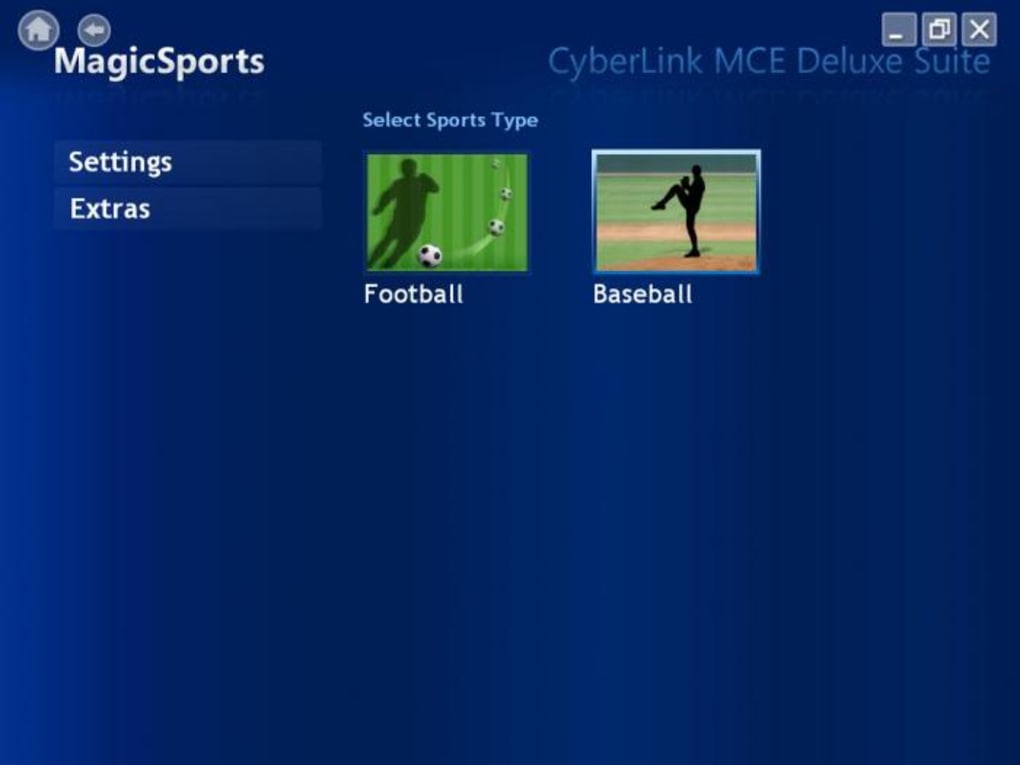
Yes, MagicSports supports both baseball and soccer, with tools to identify and edit key moments across different sports. You can create personalized highlight reels for any game you’ve recorded.
How do I update CyberLink MagicSports?
Updates are typically delivered through the CyberLink software updater. Ensure you have PowerCinema 4 or Windows Media Center installed, as updates are managed through these platforms. Regular updates improve performance and add new features.
Conclusion: Is CyberLink MagicSports Worth It?
If you’re a passionate sports fan who loves reliving the most electrifying moments of your favorite games, CyberLink MagicSports is a must-have tool. While it’s not for everyone—especially casual viewers—it shines as a powerful, free solution for fans invested in the CyberLink ecosystem. Its ability to create custom highlight reels, combined with a virtual remote and seamless integration with PowerCinema 4, makes it a unique experience for those who want to be the director of their own sports broadcast. Despite its limitations—such as platform exclusivity and DRM incompatibility—its strengths far outweigh its drawbacks for the right user. If you already record sports on your PC using PowerCinema or Windows Media Center, MagicSports adds a layer of creativity and control that’s hard to find elsewhere. Download CyberLink MagicSports today and turn your recorded games into cinematic highlights. Whether you’re sharing a last-minute goal with friends or preserving a historic home run, this software empowers you to relive the magic—your way.Guides & Tutorials for CyberLink MagicSports
How to install CyberLink MagicSports
- Click the Preview / Download button above.
- Once redirected, accept the terms and click Install.
- Wait for the CyberLink MagicSports download to finish on your device.
How to use CyberLink MagicSports
This software is primarily used for its core features described above. Open the app after installation to explore its capabilities.
User Reviews for CyberLink MagicSports 0
No reviews found





